Importing listings from CSV
Admin onlyAdmin only. The import button appears for admins on the Listings page and under Settings.
Have a rent roll or availability spreadsheet? The CSV import creates listings in bulk instead of one at a time. Save your spreadsheet as a .csv file with a header row (every spreadsheet app has "Save as CSV" or "Download as CSV").
Step 1 — Upload
Choose the destination building — every row in the file becomes a listing in that one building. (Importing into several buildings means one file per building.) Then pick your CSV file.
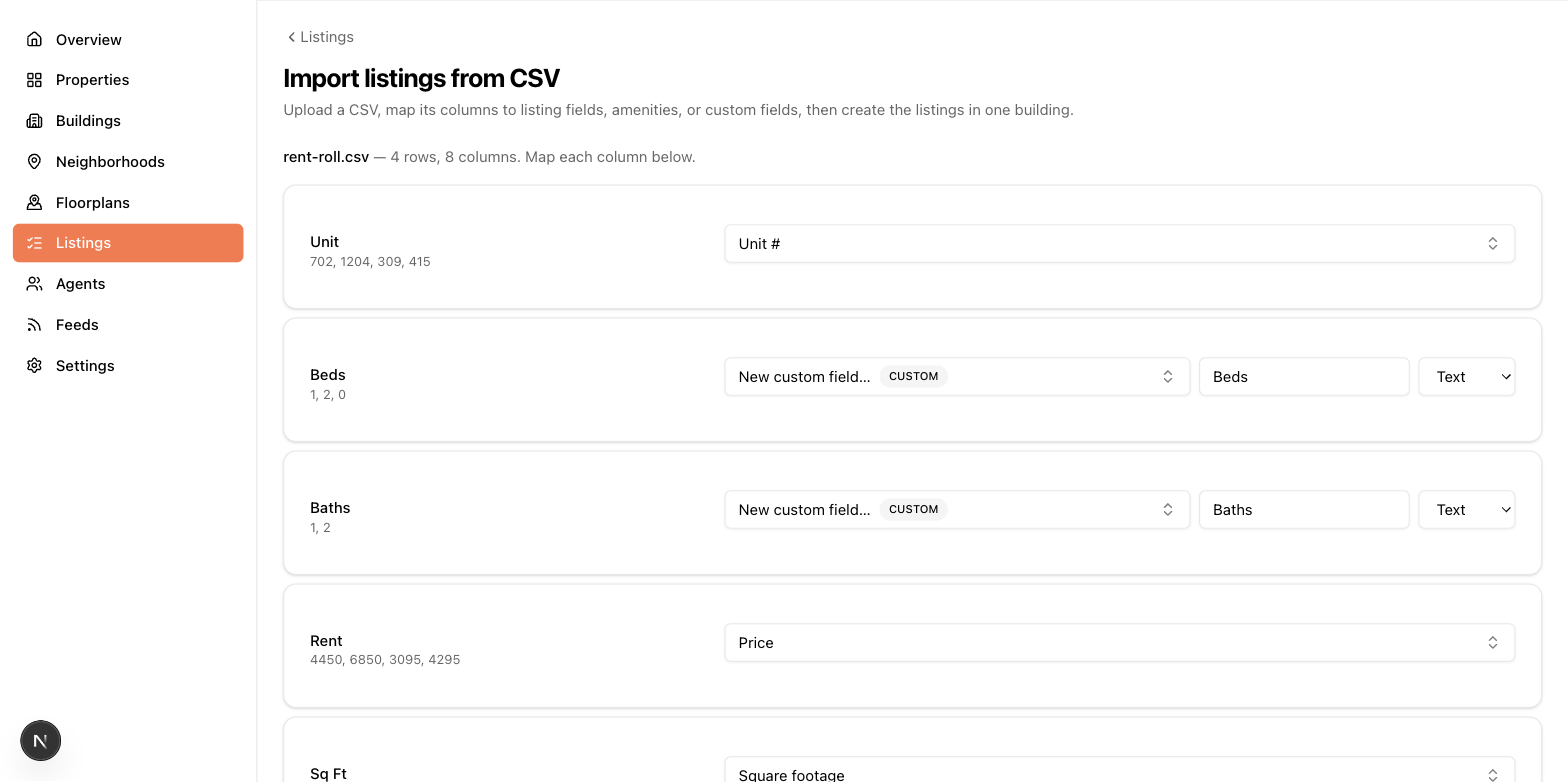
Step 2 — Map columns
The wizard lists each column from your file with a sample of its values, and guesses what it is — "Apt", "Unit", or "unit #" all match the unit number field; "beds", "rent", "sqft", "avail date" and similar headers are recognized too, including any custom names your admin has given fields. For each column, confirm or change the mapping:
- A listing field — unit number, floor, price, square footage, exposure, net effective rent, security deposit, months free, maintenance, taxes, date available, description, or MLS number.
- An amenity — the listing gets the amenity when the cell says yes (
yes,y,true,1,x, or a checkmark all count). - A custom field — an existing one, or create a new one on the spot (label + type). Unrecognized columns default to becoming new custom fields, so map or ignore them deliberately.
- Ignore — skip the column entirely.
Details worth knowing:
- Dates must be
YYYY-MM-DD(e.g.2026-09-01). Other formats mark the row invalid. - Currency symbols and commas are fine in number columns —
$2,500imports as 2500. - Bedrooms/bathrooms columns can only be mapped if your account keeps floorplan details on the listing. With shared floorplans, beds/baths belong to the floorplan, so link each imported listing to its plan afterwards. See How floorplans work.
Step 3 — Preview
Before anything imports you'll see counts of rows to create, duplicates, and invalid rows, with the table color-coding problems. A row is a duplicate when its unit number already exists in the destination building — the "skip duplicates" checkbox (on by default) leaves those untouched. Rows missing a unit number are always invalid.
Step 4 — Results
After the import: how many listings were created, skipped, or failed, with reasons for the failures. From there, jump to your listings or import another file.
Imported listings arrive like hand-created ones — same forms, same feed rules — so expect to add photos before they're feed-ready.