Photos and media
Listings, floorplans, and buildings each have image galleries that work the same way.
Uploading and organizing
- Upload one or many files at once; each shows a progress bar.
- Reorder by dragging — the first image is the primary one feeds and detail pages lead with. (Keyboard reordering is supported too.)
- Captions — click into the caption field under an image to label it.
- Delete removes an image from the record.
On a new listing the images you add are held in the browser and uploaded right after the listing is created — so don't close the tab until the save finishes.
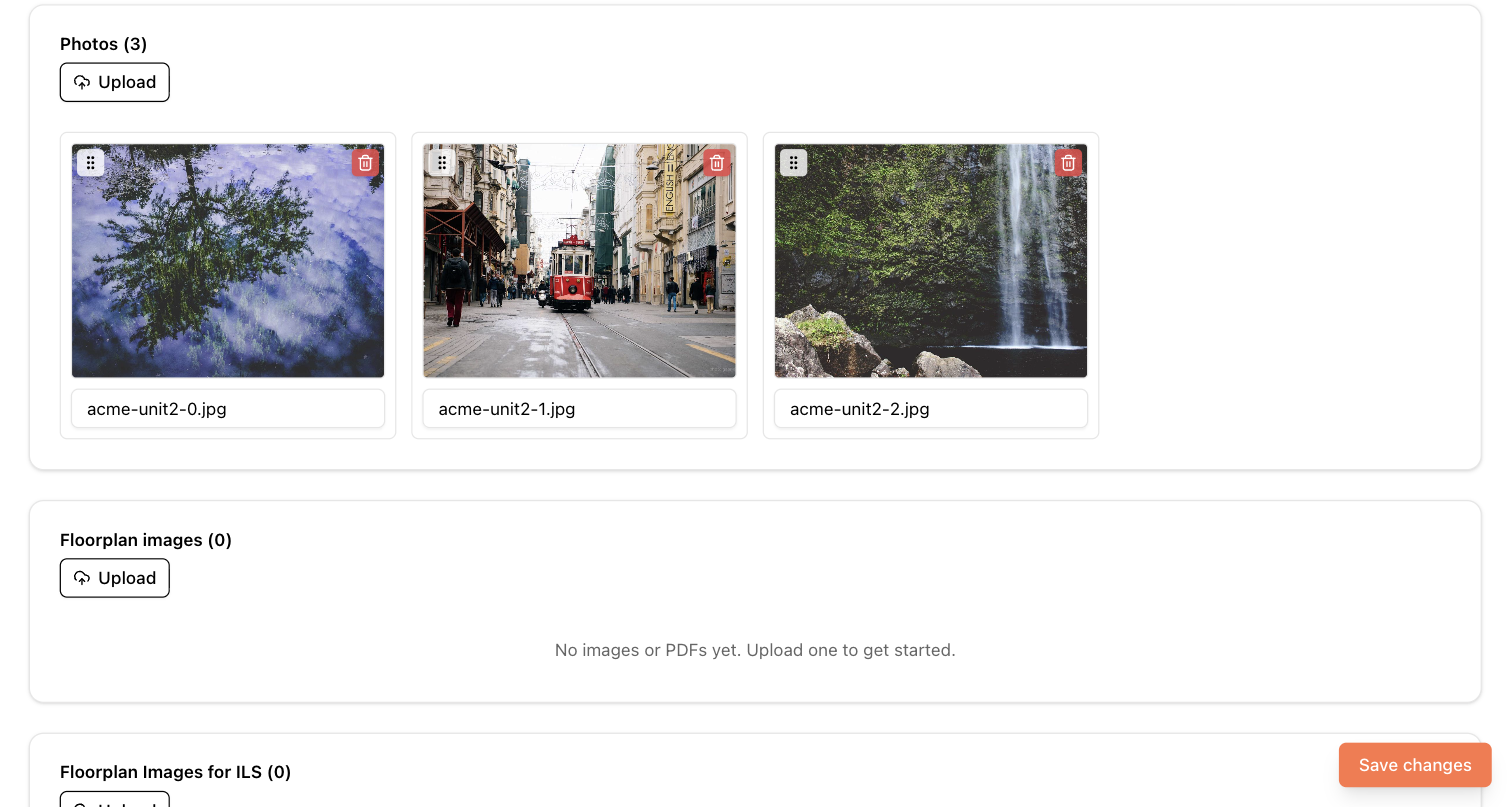
The three galleries
| Gallery | Where | What goes in it |
|---|---|---|
| Photos | Listings, buildings | Interior/exterior photography |
| Floorplan images | Listings or floorplans (depending on your floorplan mode) | Layout diagrams; PDFs allowed |
| Floorplan Images for ILS | Same, but only when your account has a MITS feed | JPG/PNG-only versions for ILS syndication |
Why the separate ILS gallery? MITS/ILS feeds don't accept PDFs. If your floorplan diagrams are PDFs, upload JPG or PNG versions to the ILS gallery; the feed uses those. If the ILS gallery is empty, the feed falls back to any compatible regular floorplan images.
Images and your feeds
- StreetEasy requires at least one photo per listing — listings without photos show a "No photos" badge and are flagged in feed diagnostics.
- MITS feeds also want a building photo and floorplan imagery; the feed pages show badges counting buildings and floorplans that are missing them.
Neighborhood and POI images
Neighborhoods and points of interest use a single-image picker instead of a gallery. It lets you upload from your device, paste an image URL, or reuse any image already in your account's media library. See Neighborhoods and points of interest.