Neighborhoods and points of interest
This section appears only if your account organizes properties by neighborhood (a setup-wizard choice). Points of interest are a second, separate toggle.
Neighborhoods are curated area pages — a description, a hero image, and optionally a map of nearby points of interest — that enrich how your properties are presented.
The neighborhoods list
The Neighborhoods page groups neighborhoods by area and shows only the ones your properties actually use. For each you'll see how many of your properties and listings sit in it, plus two readiness badges: whether a description and an image are set. A "Missing" badge links straight to the edit page.
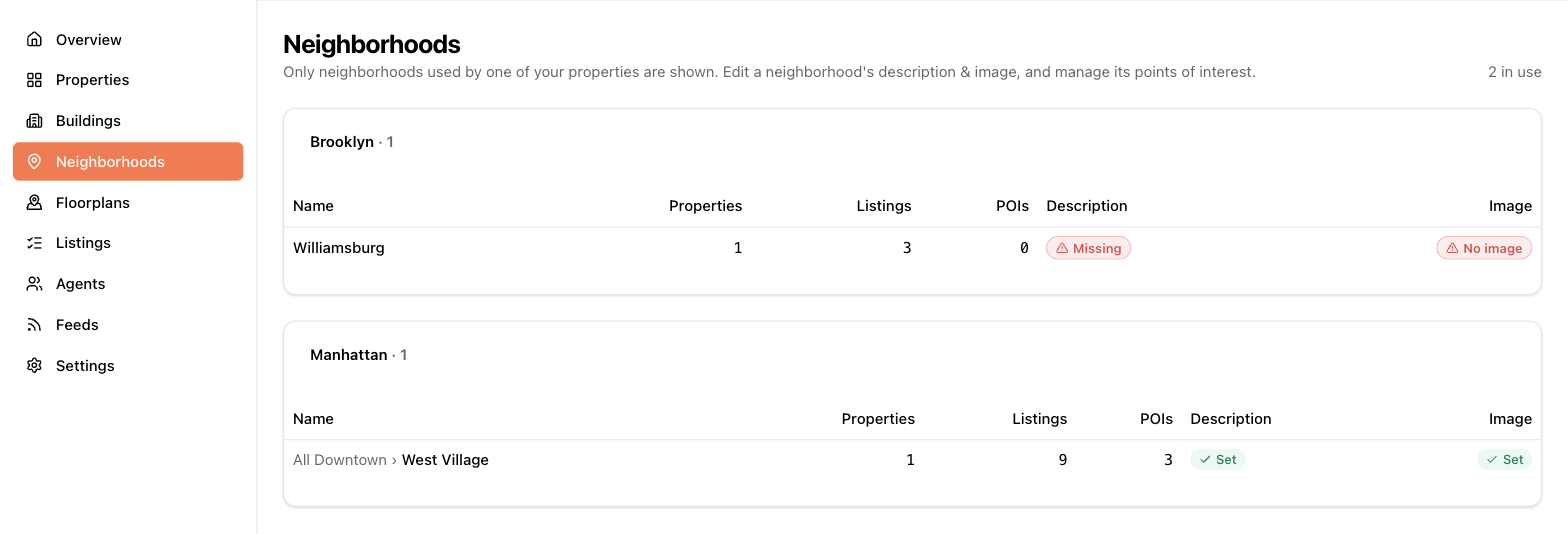
Editing a neighborhood
Neighborhoods come from a shared reference list, so you don't create or rename them — you customize what your account says about them:
- About — a rich-text description. If you don't want to write one, click Use default description to pull in a pre-written one you can tweak.
- Image — the picture for the neighborhood, set with the image picker (upload, paste a URL, or choose from your media library).
Your description and image are your account's own — they never affect other companies using the app.
Points of interest
If POIs are enabled, each neighborhood page shows a map and a list of points of interest — transit stops, schools, parks, restaurants — with photos and categories.
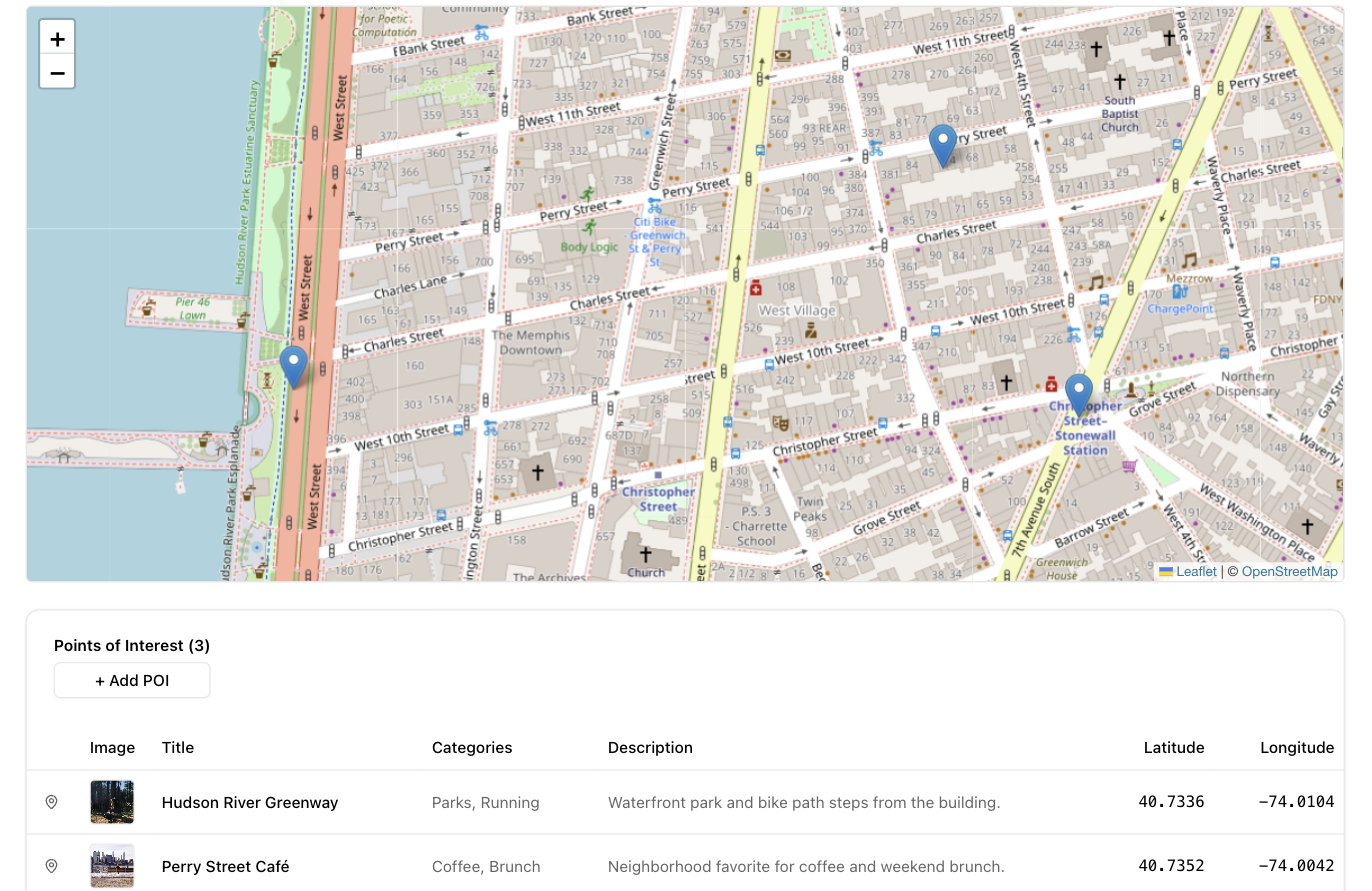
To add one, click + Add POI on the neighborhood page. The fastest way to fill the form is "Find this POI on Google": search for the place and the form picks up its name, coordinates, and photo automatically. You can also enter everything by hand:
- Title (required)
- Categories — free-form tags; the field suggests tags you've used before so spellings stay consistent
- Latitude / longitude — where the marker sits on the map
- Description — rich text
- Image — with photo attribution when it came from Google
On the neighborhood page, each POI row has a "show on map" button that highlights its marker.