The setup wizard
Admin onlyAdmin only. Members don't see the wizard; the answers an admin chooses shape the app for everyone in the account.
The first time an admin signs in, a short setup wizard appears. Its five questions tailor the app to how you work — they control which sidebar sections exist and where certain fields live. You can leave it and come back: a "Finish setup" card stays in the corner until every question is answered.
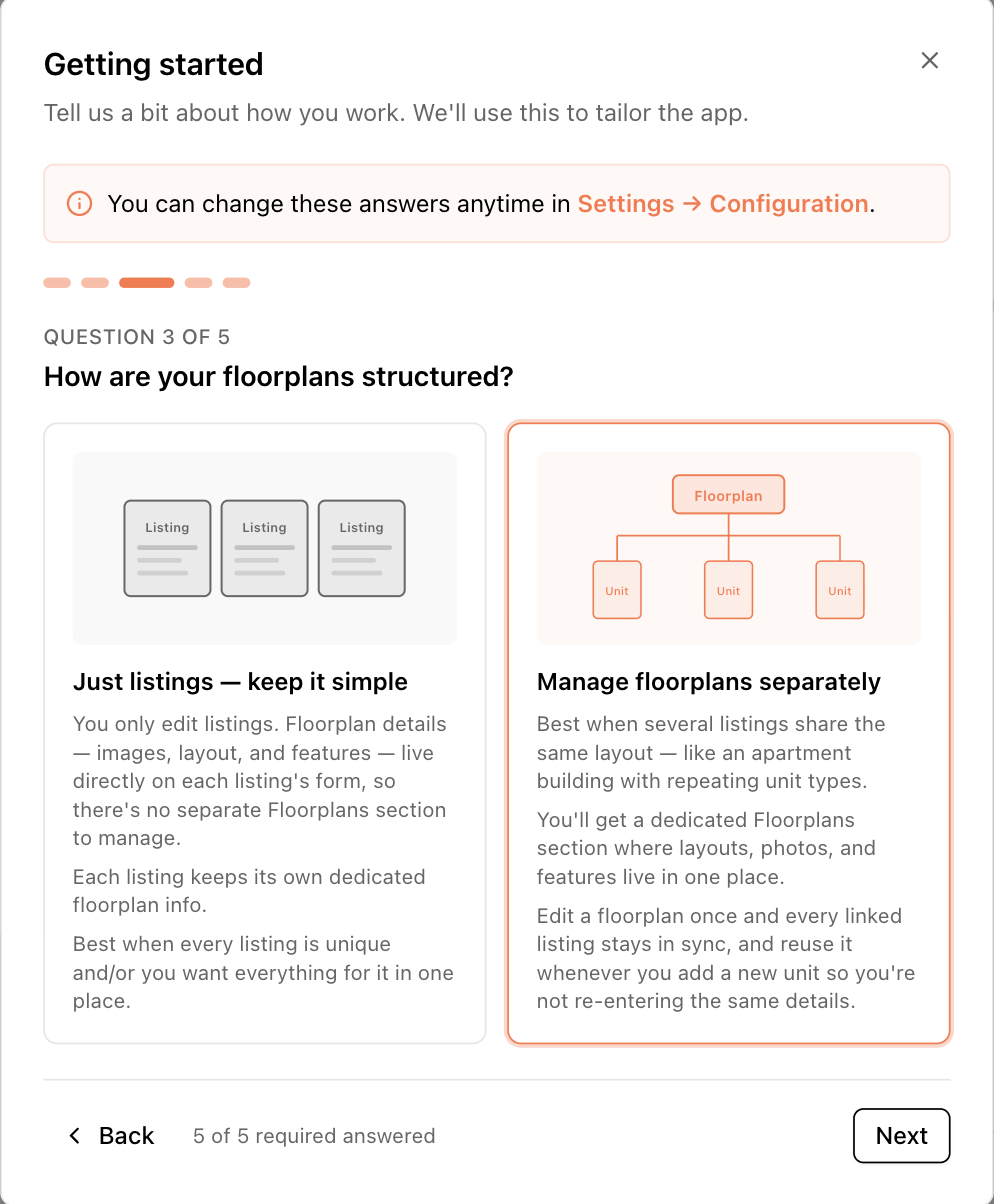
The five questions
1. How many buildings will you manage?
- Just one — the app hides the Properties and Buildings sections entirely. Your one building appears by name in the sidebar, its form includes the property-level fields, and listings skip the building picker (there's only one choice).
- More than one — you get the full Properties → Buildings hierarchy.
Switching from "more than one" to "just one" is guarded: if you already have several buildings, the wizard asks you to choose the building to keep and warns exactly how many buildings, listings, and floorplans will be archived. Archived data is recoverable through support, but treat this as a serious step.
2. Organize properties by neighborhood?
Choosing yes adds the Neighborhoods section to the sidebar, a neighborhood field on each property, and neighborhood filters and columns on the Properties and Listings tables. See Neighborhoods and points of interest.
3. How are your floorplans structured?
The most important question — it decides whether floorplans are shared records or live inside each listing. It gets its own guide page: How floorplans work.
4. Track nearby Points of Interest?
Choosing yes adds a POI map and list to each neighborhood page, so you can showcase transit, schools, dining, and more.
5. How many companies or landlords do you work with?
Choosing Just one keeps things simple: the app assumes a single company behind all your properties and never asks about it again.
Revisiting your answers
Go to Settings → Configuration to see a summary of every answer and when it was last updated. The Edit answers button reopens the wizard so you can change any of them.
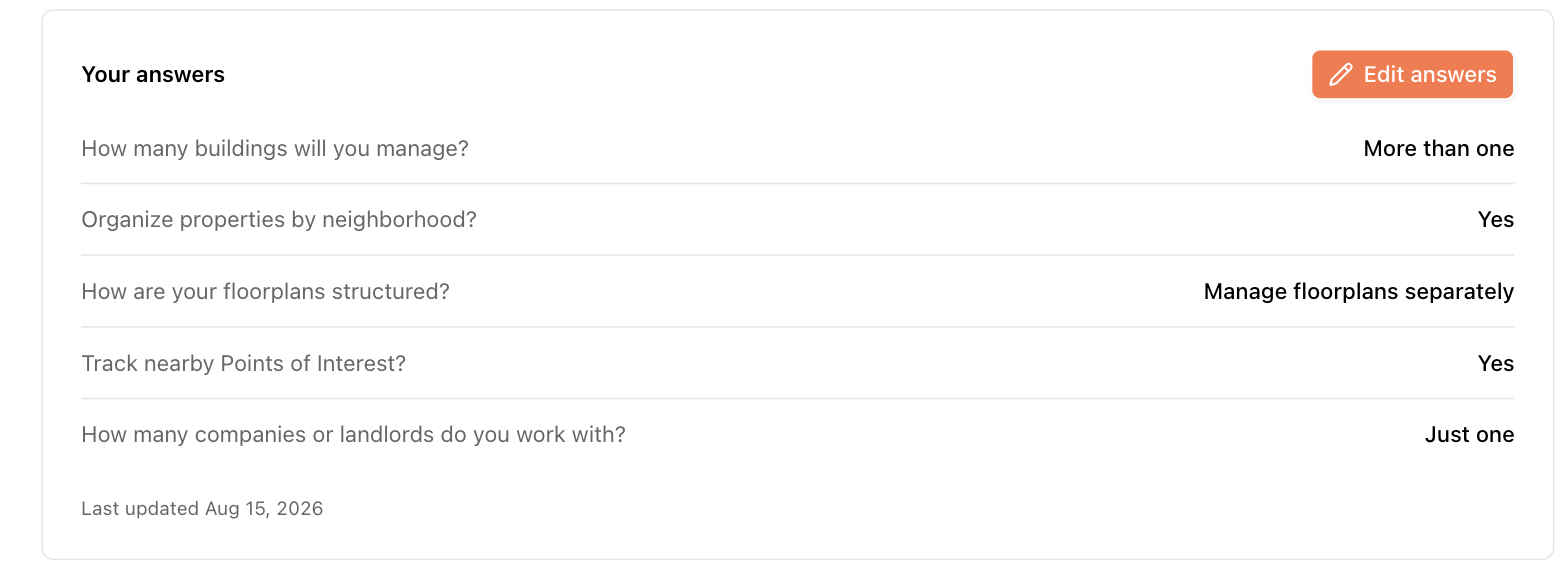 Changes apply immediately to everyone in the account — for example, turning neighborhoods off hides that sidebar section for all users.