Welcome
This app is a listings CRM: one place to manage your buildings, apartments, and the people and feeds that market them. This guide walks through everything you can do, written for someone using the app for the first time.
How your data is organized
Everything in the app hangs off a simple hierarchy:
- Property — a development or portfolio entry, which contains one or more buildings.
- Building — a physical address, with its own amenities, photos, pet policy, and office hours.
- Floorplan — a unit layout (beds, baths, square footage). Depending on your account's setup, floorplans are either shared records or live inside each listing — see How floorplans work.
- Listing — an individual unit for rent or sale: the price, status, photos, and details that appear in your feeds.
Supporting records sit alongside this hierarchy: Agents (contacts you attach to listings), Neighborhoods (curated area pages with descriptions and points of interest), and Feeds (how your listings get published to the outside world).
The sidebar
The left sidebar is the main navigation. What you see depends on how your account was set up, so don't worry if yours has fewer sections than a teammate's screenshots:
| Section | What it's for | When it appears |
|---|---|---|
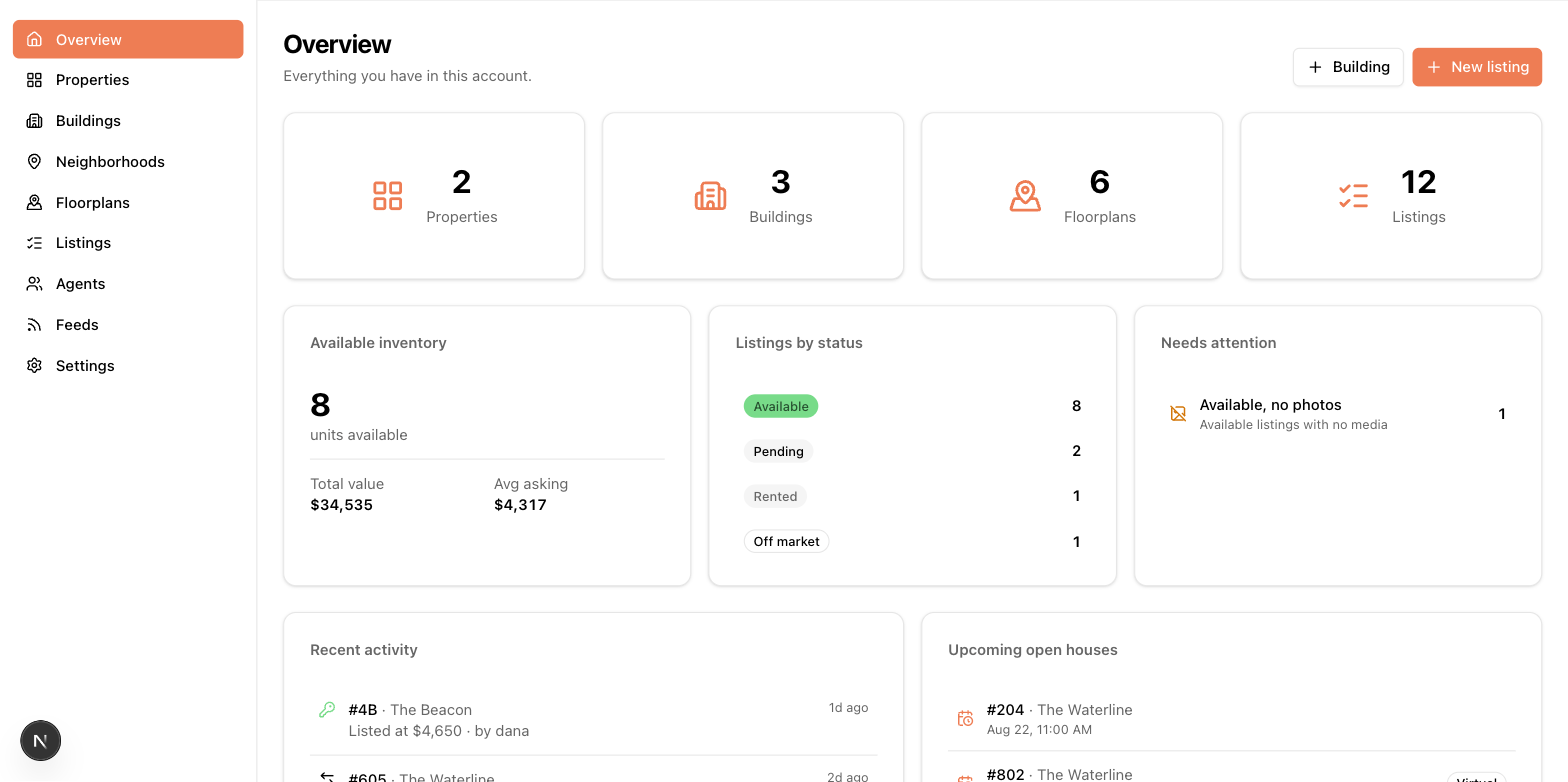
| Overview | Your dashboard: stats, alerts, activity, open houses | Always |
| Properties & Buildings | Your physical inventory | Hidden when your account manages a single building — the sidebar shows that building directly instead |
| Neighborhoods | Area descriptions, images, and points of interest | Only if your account organizes properties by neighborhood |
| Floorplans | Shared unit layouts | Only if your account manages floorplans separately from listings |
| Listings | The units themselves | Always |
| Agents | Your agent directory | Always |
| Feeds | Publishing to StreetEasy, MITS, or custom JSON | Always |
| Settings | Configuration, form layouts, team management | Always (some pages are admin only) |
The top bar shows which account you're working in and your email address. If you belong to more than one account, a dropdown there lets you switch — see Your team and account.
Signing in and out
- Sign in with your email and password at the login page.
- Forgot your password? Use the "Forgot password" link on the login page — you'll get an email with a reset link.
- Sign out with the button in the top-right corner.
New teammates join by invitation: an admin sends an invite from Settings → Team, and the invite email contains a link where you set your password. See Your team and account.
Admins and members
Every person in an account is either an Admin or a Member. Members can do day-to-day work — creating and editing properties, buildings, floorplans, listings, agents, neighborhoods, and feeds. Admins can additionally change account-wide settings: the setup questions, form layouts, custom fields, table columns, CSV imports, and the team itself. Pages in this guide that only apply to admins are marked Admin only.
A note on deleting
Deleting in this app is an archive, not a destruction. When you delete a record it disappears from the app (and from your feeds), and the delete confirmation tells you how many related records go with it — for example, deleting a building also archives its listings. If you delete something by mistake, contact support; archived data is recoverable.