The listings table
The Listings page is where you'll spend most of your time. It's built for working through inventory quickly.
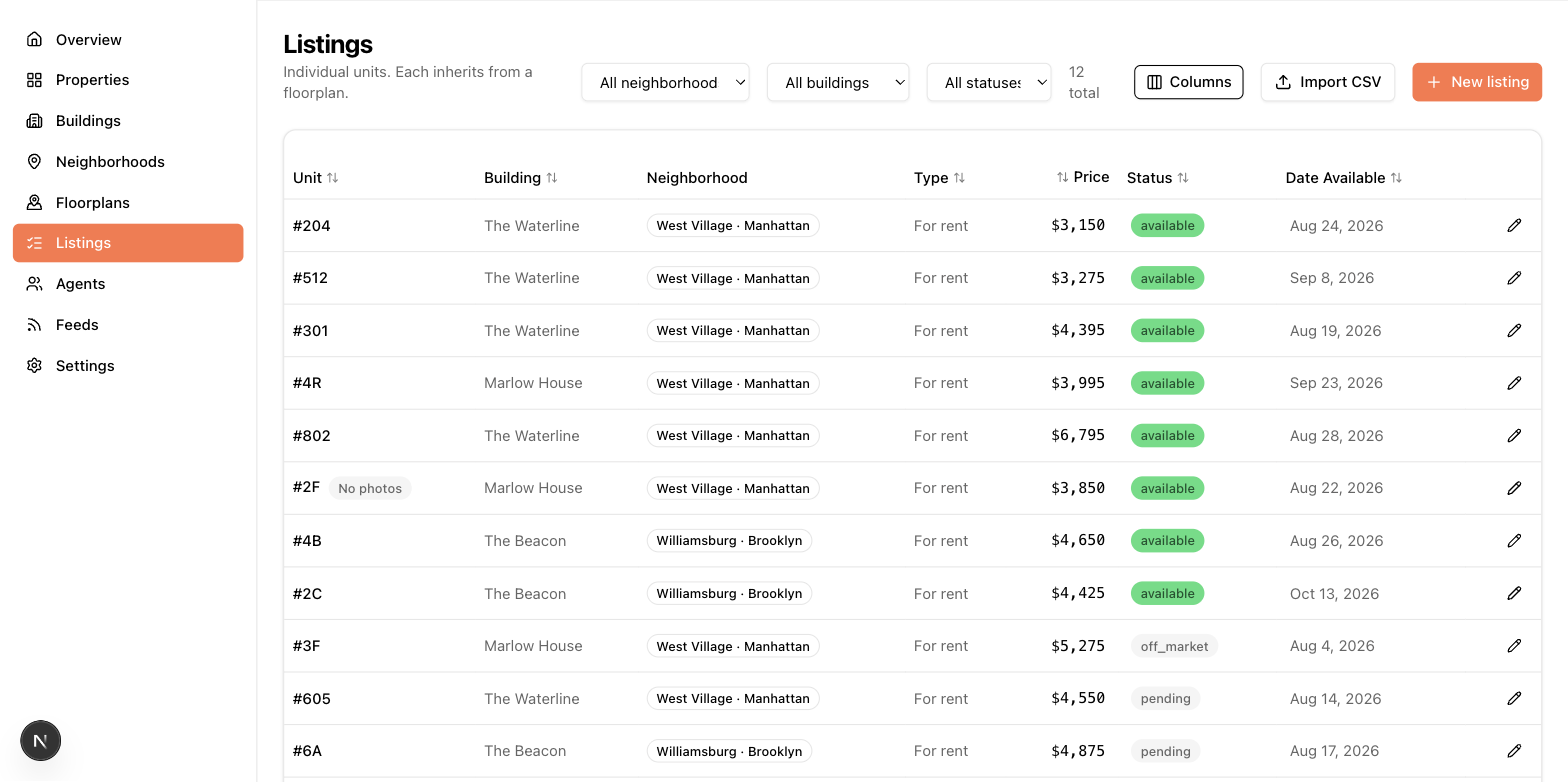
Filters and sorting
- Filters above the table narrow by neighborhood, building, and status (each appears only when there's more than one to choose from).
- Sortable columns — click a column header to sort by unit number, type, price, status, date available, building, square footage, floor, or net effective rent. Click again to flip the direction.
- The default order puts available listings first, newest first within each group.
- Filters and sorting live in the page URL, so you can bookmark or share a filtered view.
Quick inline edits
You don't need to open a listing to make the most common changes. Double-click a value directly in the table:
- Price and net effective rent — type a new amount and press Enter.
- Status — pick from the dropdown.
- Date available — pick a date.
Changes save immediately.
Row badges
Badges on a row flag problems worth fixing:
| Badge | Meaning |
|---|---|
| No photos | The listing has no photos — most feeds require at least one. |
| StreetEasy fields required | Something StreetEasy needs is missing; hover to see exactly what. |
| MITS fields required | Same, for MITS feeds. |
| Building deleted / missing | The listing is orphaned — see Listings. |
Choosing columns
Admin only. Admins see a column picker on the listings table to choose which columns everyone in the account sees — building, neighborhood, type, beds, baths, square footage, floor, price, net effective rent, status, date available. The choice applies account-wide.
If your admin has renamed fields (say, "Price" to "Gross Rent"), the table headers use those names too.