Listings
A listing is one unit for rent or sale — the record your feeds publish. This page covers creating and editing listings; for the list view's filters and shortcuts see The listings table.
Creating a listing
Click + New listing from the Listings page, the dashboard, or a building's detail page. At the top of the form:
- Building — which building the unit is in (hidden if your account has just one, or preselected when you started from a building page).
- Floorplan — accounts with shared floorplans pick the unit's layout here; the plan's beds/baths appear as read-only chips. Accounts without a Floorplans section instead get bedroom/bathroom fields right on the form. See How floorplans work.
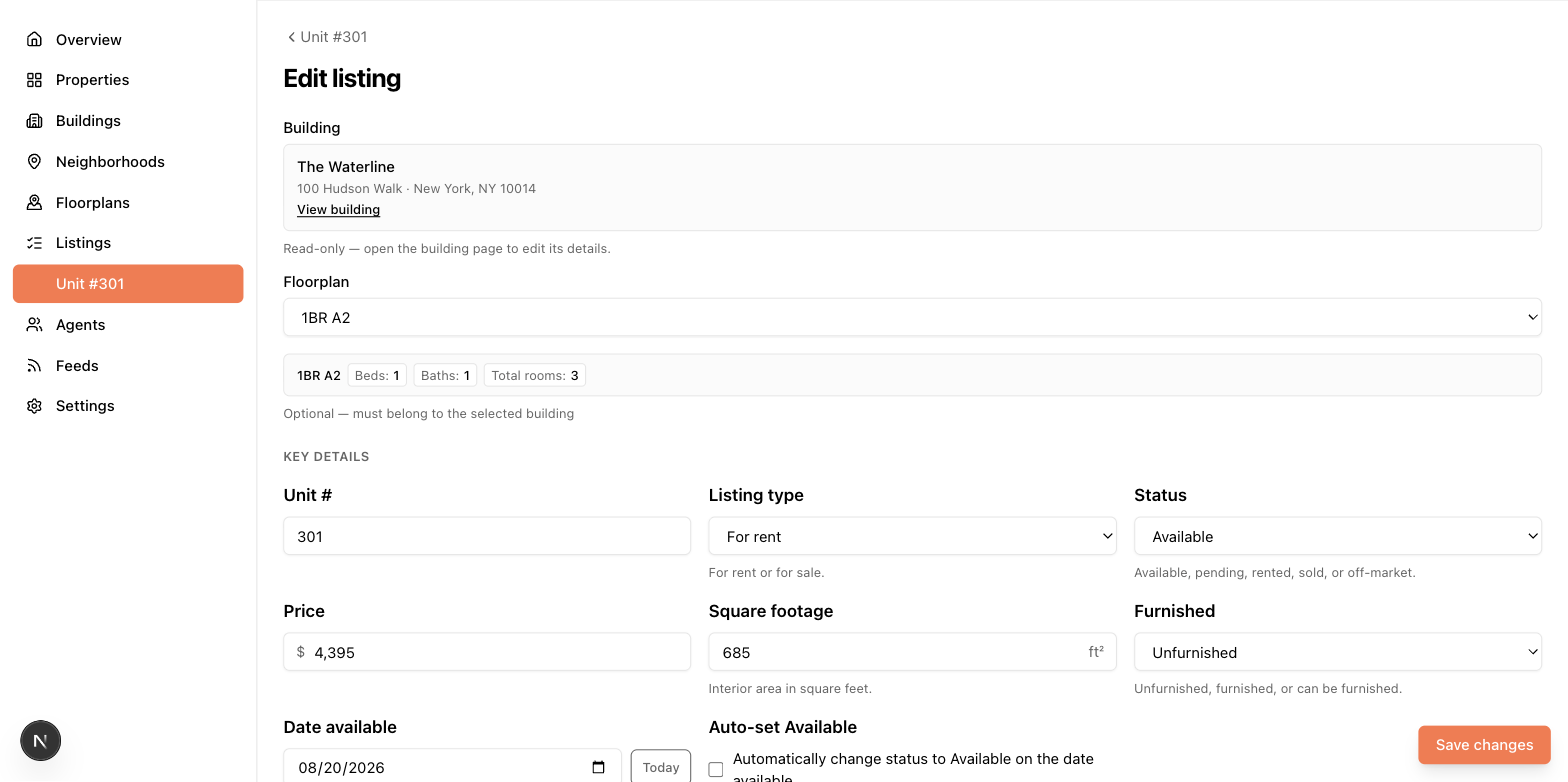
Below that, the form's sections — key details like unit number and price, descriptions, amenities, and so on — follow the layout your admin configured, so field names and order can differ between accounts. Fields marked required must be filled before saving.
The form also includes photos and floorplan images, agents, fees, and open houses. One Save button at the bottom saves everything at once.
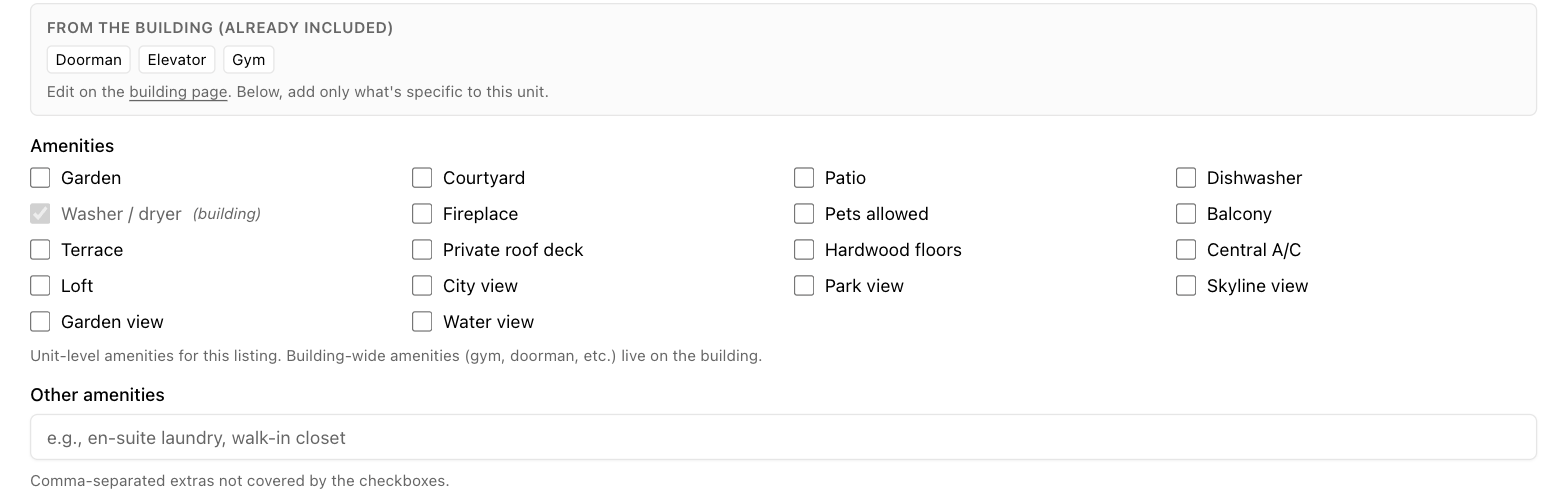
The amenities section shows which building-wide amenities already cover the unit, so you only check what's specific to it:
Specials
The Specials field (in the pricing section by default — your admin may have moved or hidden it) holds special offers for this one unit, like two months free on a particular apartment. Click Add special and fill in a name, a description, an optional start and end date, and leave Active checked.
Active specials are published in your syndication feeds while they're inside their date window — expired or inactive ones stay saved on the listing but stop being published automatically, so you don't need to delete a special when it ends.
The listing's detail page shows a Specials card with each special's name, description, and date range, plus a status badge: Live (being published now), Scheduled (its start date hasn't arrived), Expired (its end date has passed), or Inactive (the Active box is unchecked). Building-wide specials the unit inherits appear in the same card under a "Building-wide" heading. The card is hidden when there are no specials at all.
Building-wide offers: if the same offer applies to every unit in a building, enter it once on the building instead (see Properties and buildings). Feeds publish both the building's specials and the listing's own.
Statuses
Every listing has a status:
| Status | Meaning | Ships to StreetEasy / MITS feeds? |
|---|---|---|
| Available | On the market | Yes |
| Pending | Application or contract in progress | Yes |
| Rented | Leased | No (treated as off-market) |
| Sold | Sold | No |
| Off market | Withdrawn / not advertised | No |
Custom JSON feeds can include all statuses; see Feeds.
Auto-available: if a listing has a future "date available", you can flag it to flip to Available automatically on that date — useful for upcoming vacancies you want to go live without anyone remembering to edit them.
Private listings
Marking a listing private keeps it out of every feed and out of your availability counts, while it remains fully visible and editable in the app. Use this for units you're tracking but not advertising.
"This listing won't appear in the feed yet"
If your account has a live feed, the listing form warns you when required feed fields are missing — for example StreetEasy requires a price and at least one photo. Each item in the warning is a link: click it to jump to the field, or to the building or floorplan page if that's where the value actually lives.
Orphaned listings
If a listing's building is deleted, the listing becomes orphaned — it stays in the app with a "building missing" badge but can't ship to feeds. Open it and use the building picker to move it into an existing building, or restore the building via support.