Properties and buildings
Properties group your buildings; buildings hold the physical details that feed into every listing inside them.
Single-building accounts: if your account manages just one building, the Properties and Buildings list pages don't exist — the sidebar shows your building directly, and its form combines the property and building details in one place. Everything below about the building form still applies.
Properties
The Properties page lists each property with its neighborhood, description, and how many buildings it contains. To add one, click + New property.
A property has just a few fields:
- Name (required)
- Description — rich text (bold, italics, lists, links)
- Neighborhood — shown if your account organizes by neighborhood
- Property type — Residential or Commercial. This cascades: buildings and listings inherit it unless overridden.
Open a property to see its buildings and add new ones from there.
Buildings
The Buildings page lists every building with its address, year built, unit count, and quick links to its floorplans and listings.
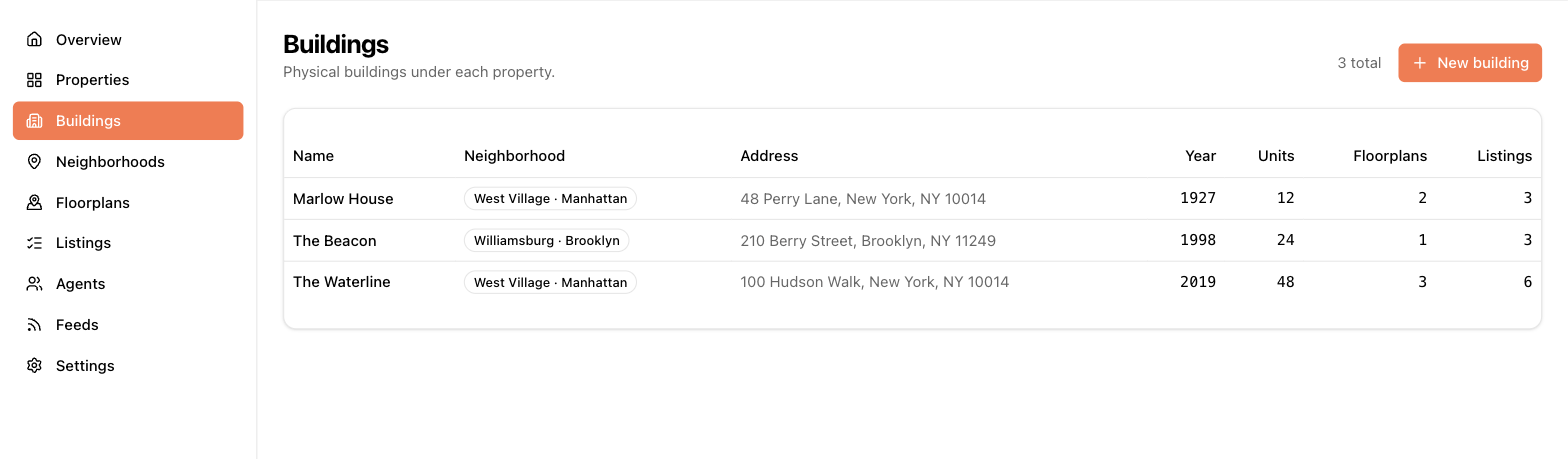
Click a building to see its full detail page — amenities, photos, floorplans, and listings all in one view — or Edit to change it.
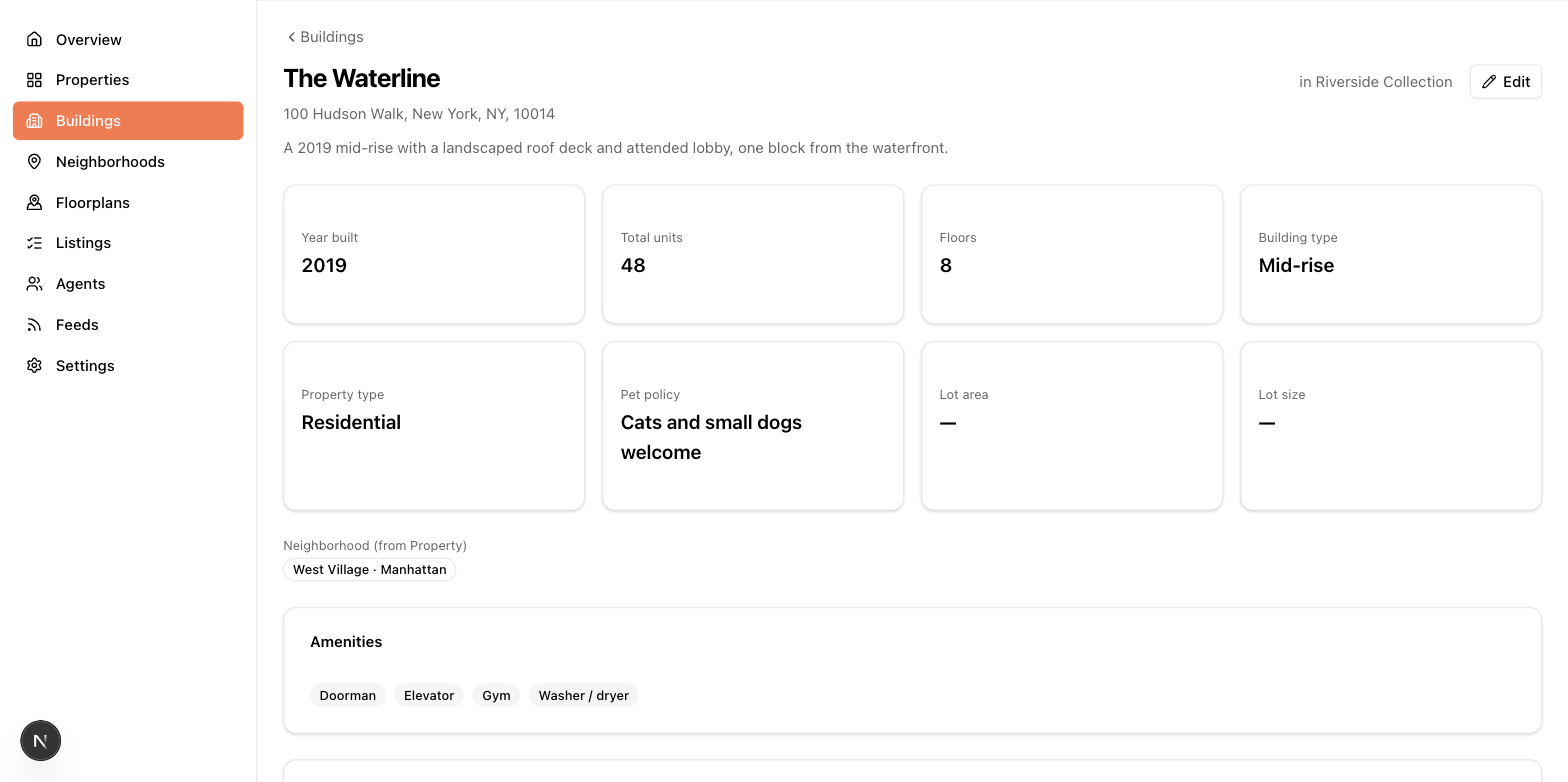
The building form is the richest in the app. Beyond name and address, it covers:
- Basics — building type (e.g. High-rise), property type, year built, total units, floors, lot details, and a rich-text description.
- Marketing contact — the phone, email, and website published with this building in syndication feeds. If you use a MITS feed, fill these in.
- Amenities — building-wide amenities (doorman, elevator, gym…) and shared unit amenities. Listings inside the building automatically show which building amenities cover them, so you don't re-check them per unit.
- Pet policy — structured rows per pet type: allowed or not, weight limits, deposits, fees, monthly rent, and notes.
- Utilities — which utilities are included, and an estimated monthly cost for the rest.
- Office hours — leasing office hours per day of the week.
- Specials — special offers and concessions, like a month of free rent for September move-ins. Each special has a name, a description, an optional start and end date, and an Active checkbox. Active specials are published in your syndication feeds while they're inside their date window — expired or inactive ones stay saved on the building but stop being published automatically, so you don't need to delete a special when it ends. Use building specials for offers that apply to every unit; an offer for one particular unit goes on that listing instead. The building's detail page lists its specials with a Live, Scheduled, Expired, or Inactive badge so you can see at a glance which ones are currently being published.
- Lease terms — minimum lease length and any notes.
Building photos
Open a building's edit page to manage its photos: upload several at once, drag to reorder, and add captions. Feeds that publish building imagery (like MITS) use these — a building with no photo shows a warning badge on the feed page. See Photos and media.
Deleting
Deleting a property or building archives it along with everything inside it. The confirmation dialog tells you exactly how many buildings, floorplans, and listings are affected before you commit. Archived records are recoverable via support.