Customizing forms and fields
Admin onlyAdmin only for making changes. Members can view the form layout pages but not edit them.
The listing form (and the floorplan form, if your account uses shared floorplans) is fully customizable per account. What you configure here changes the forms, detail pages, table headers, and CSV import for everyone on your team.
Form layout editors
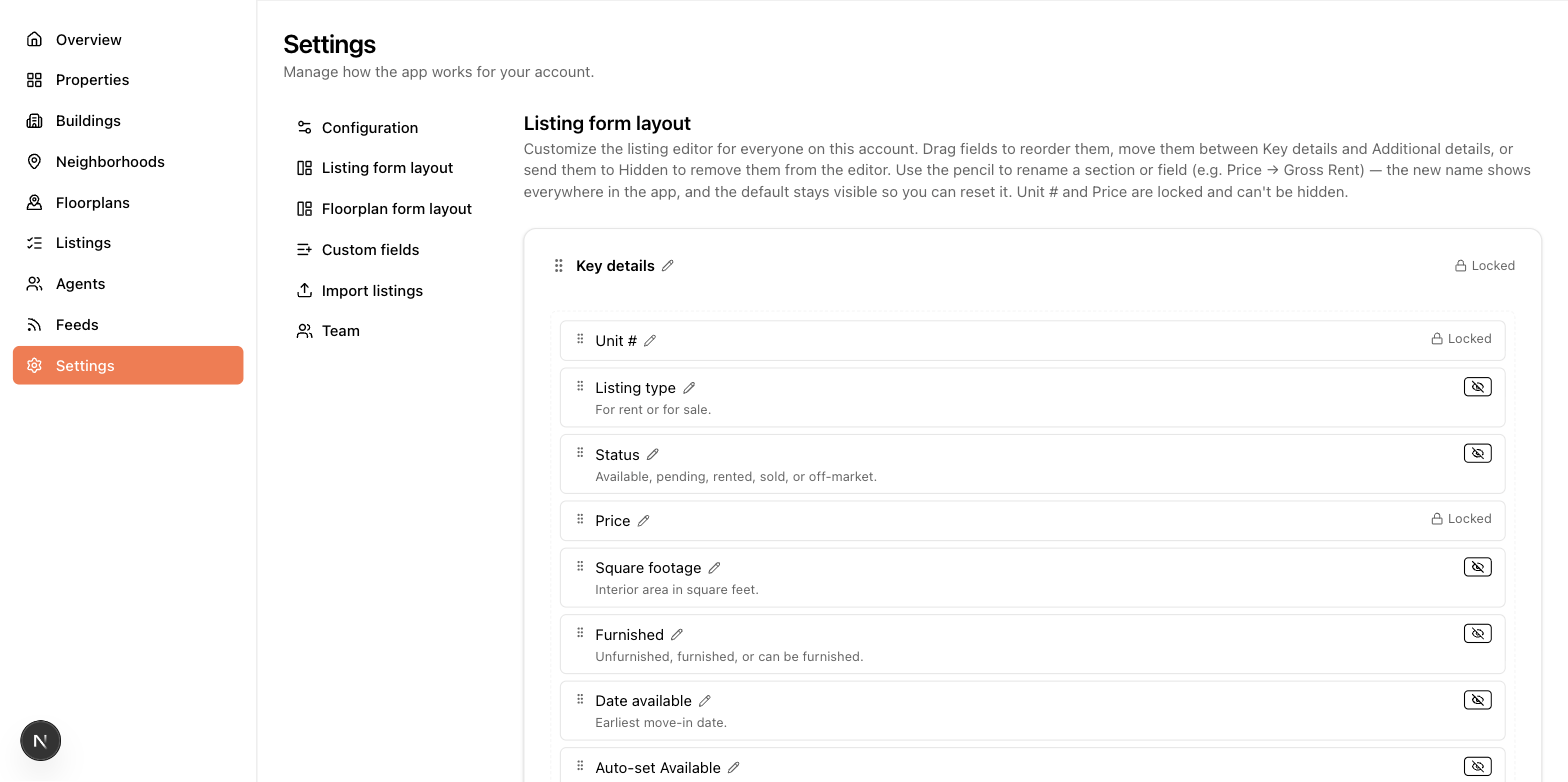
Settings → Listing form layout (and Floorplan form layout) show the form as draggable sections and fields:
- Reorder sections and fields by dragging.
- Move fields between sections — drag a field into a different section.
- Hide a field by dropping it into the Hidden area, or hide a whole section. Hidden fields keep their data; they just leave the form.
- Rename any section or field with the pencil icon. Renames are display-only but propagate everywhere — form labels, table headers, detail pages, and the CSV import's column matching. Renaming "Price" to "Gross Rent" makes the whole app say Gross Rent.
- Reset to default restores the original layout.
A save bar appears when you have unsaved changes. A few essentials (unit number, price, the floorplan name) are locked visible so a layout can't break the app.
Custom fields
Settings → Custom fields adds fields the built-in form doesn't have. Each custom field gets:
- A label, and a type: text, long text, number, checkbox, or date.
- The form section it appears in, optional help text and instructions, and whether it's required.
The editor warns you when a new field's name looks like an existing built-in field or amenity, so you don't create a duplicate of something that already exists.
Migrating data: if data ends up in a custom field that really belongs in a built-in one (common after CSV imports), the field's Migrate data tool copies values into a compatible standard field. It previews how many values will copy, which conflict (existing values are never overwritten), and which can't convert — before you apply anything.
Listing table columns
On the Listings page, admins get a column picker to set which columns the whole account sees. See The listings table.