Your team and account
Admin onlyAdmin only for managing the team. Anyone can belong to multiple accounts and switch between them.
Inviting teammates
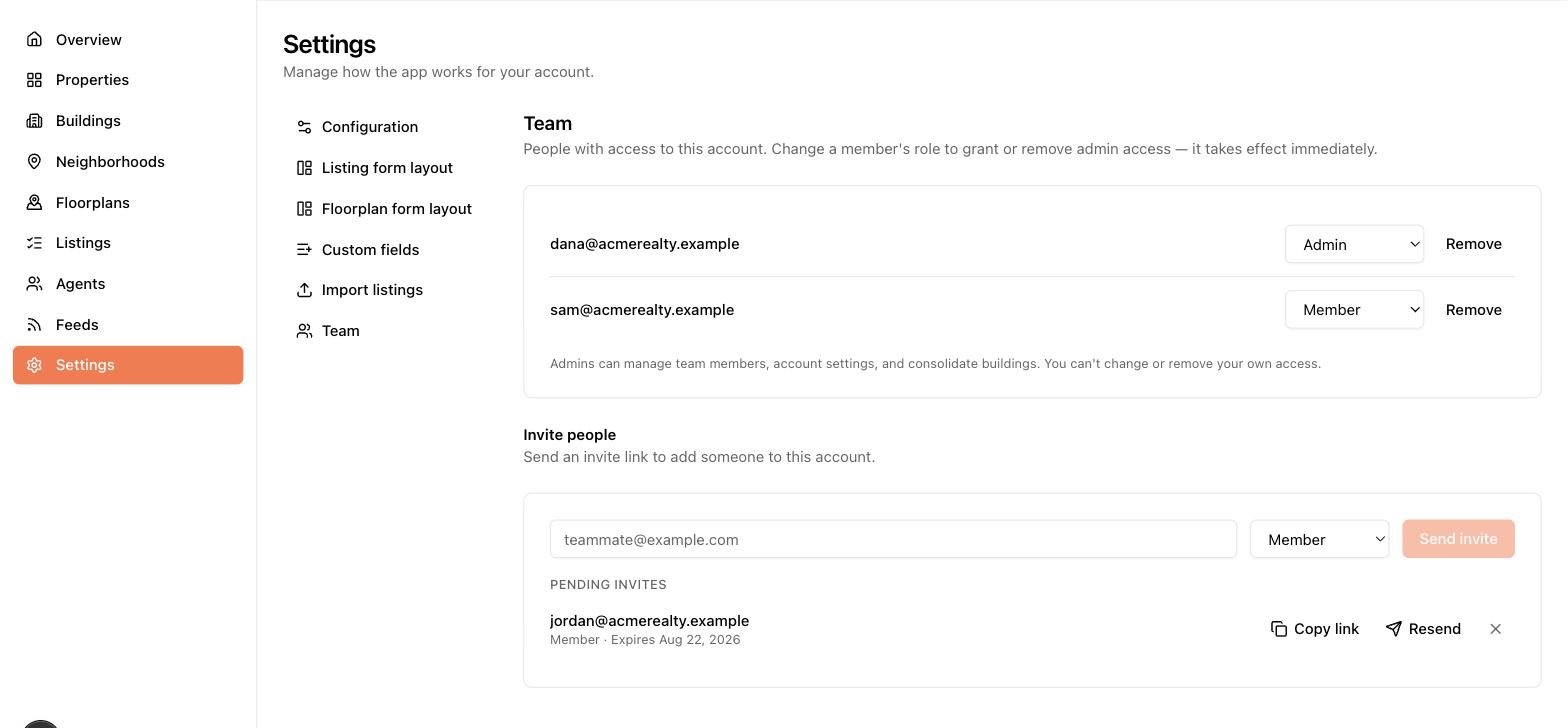
Go to Settings → Team. Enter an email address, choose a role (Admin or Member), and send. The person gets an email with an invite link where they set a password and land in your account. If the email doesn't arrive, every pending invite has a Copy link button — send the link yourself by any channel you like.
Pending invites are listed with their role and expiry. You can resend one (fresh email, fresh expiry) or revoke it so the link stops working.
Admin vs Member
| Can… | Member | Admin |
|---|---|---|
| Create/edit properties, buildings, floorplans, listings | Yes | Yes |
| Manage agents, neighborhoods, POIs | Yes | Yes |
| Create and configure feeds | Yes | Yes |
| Change setup answers (Settings → Configuration) | — | Yes |
| Edit form layouts, custom fields, table columns | View only | Yes |
| Import listings from CSV | — | Yes |
| Invite, remove, and change roles of teammates | — | Yes |
Managing members
The Team page lists everyone in the account. Admins can switch a person between Admin and Member with the role dropdown (takes effect immediately) or remove their access. You can't change or remove yourself — ask another admin.
Removing someone only removes their access to your account; it doesn't delete their user or touch any data they created.
Switching accounts
If you belong to more than one account (for example, you manage listings for two companies), the account name in the top bar becomes a dropdown. Pick an account to switch — the whole app (listings, settings, feeds) scopes to the account you're in, and your role can differ per account. The app remembers your last choice.